- Lesson 1 : Cloud Concepts
- Lesson 2 : Benefits of using Cloud services
- Lesson 3 : Types of Cloud Service
- Lesson 4 : Core Architectural Components
- Lesson 5: Azure Compute and Networking Services
- Lesson 6: Azure Storage Services
- Lesson 7 : Azure Identity, Access and Security
- Lesson 8 : Cost Management in Azure
- Lesson 10 : Features and Tools for Managing and Deploying Resources
- Monitoring Tools
Lesson 1 : Cloud Concepts
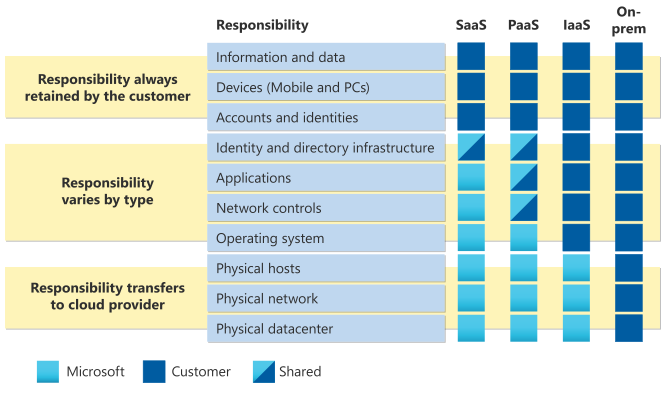
Shared Responsibility Concept
The cloud provider will only take responsibility for the things that they control. That both the client and the cloud service provider share the responsibility, but how much they share is dependent on the shared infrastructure provided by the cloud service provider :
- Public Cloud
- Private Cloud
- Hybrid Cloud
When using a cloud provider, you’ll always be responsible for:
- The information stored in the cloud
- Devices that are allowed to connect to your cloud (cell phones, computers etc)
- The accounts and identities of the people, services, and devices within your organization
The cloud provider is always responsible for
- The physical datacenter
- The physical network
- The physical host
The service model will determine responsibility for things like:
- Operating Systems
- Network controls
- Applications
- Identity and infrastructure
Public Cloud
- Shared infrastructure, i.e., shared network, computers etc.
- Multi-tenant, because multiple clients are sharing the same resources.
- Benefits :
- Agility : easy to expand or decrease the amount of resources as per demand
- No capital expenditures to scale up
- Quick Deployment : Since multiple cloud providers are in the game, they all want to make it easier for their clients to launch their product
- Easy Management : For the same reason, they also make it easier to manage everything.
- Cost Control : You only pay for what you use in the cloud
- Problems :
- Loss of control : You don’t have visibility of the entire infrastructure, so you’re losing control of many things that could be in your control.
- Security and regulatory requirements : While cloud providers do have some security measures, it might not be enough depending your your requirements.
- Some Loss of Flexibility : you can only choose from a pre-configured choices
Private Cloud
- Benefits :
- Agility : same agility to scale the infrastructure up or down
- Private Network : You don’t share those resources with anyone else, so that’s better for companies that are more security focused
- Can be used without internet access : Say for cruise ship, that has no reliable internet connection throughout the trip. They still might want to use their systems with the benefits of the cloud. For this, they can operate in a disconnected way and then sync their systems once they reach the shore
- Can control cost : because you own everything and don’t have to pay any fees incurred in the public cloud
- Problems :
- Can be expensive : Even though the systems are dedicated to you, the cloud service provider offering the private cloud has to maintain the IT support and power for the infrastructure. And if you decide to own the infrastructure, then YOU have to pay for the IT staff and power yourself.
- May not be able to effectively control the data : Since you’re using a third-party infrastructure provider, even though systems might be dedicated only to you, how the systems are allocated and managed is not upto you, which can still be a privacy concern. To alleviate that you need to buy your own infrastructure, thereby increasing the upfront and operational cost.
Hybrid Cloud
It’s a mixture of public and private infrastructure. Which means while you use public infrastructure, but you also keep a private system for handling more sensitive data. A hybrid cloud environment can also be used to allow a private cloud to surge for increased, temporary demand by deploying public cloud resources
- Benefits :
- Better support for legacy system : if you have any outdated system, you can just keep and have it connected to the cloud .
- Maintain control over data, security, compliance and infrastructure (for the above reasons)
- Problems :
- Can be technically complex : You can use hybrid system to maintain legacy systems, but that can be complex as well, but also to troubleshoot if something goes wrong
- Compatibility of data : how your system manages data and how the cloud provider manages the data could be different and that could bring more complexity
- Additional IT expertise : to manage on-site resources and connectivity to your cloud service provider.
Consumption Based Model
When comparing IT infrastructure models, there are 2 types of expenses to consider. Capital expenditure (CapEX) and Operational expenditure (OpEx)
- CapEx is typically a one-time, upfront expenditure to purchase or secure tangible resources like a new building, new server, building a new data center etc
- OpEx is spending money on services or products over time, like
It basically means that you only pay for the resources allocated to you. “Allocation” can be different from usage. If you are allocated a Virtual Machine, you’ll have to pay for it, even if you don’t use it. Don’t pay for resources you don’t need, and that doesn’t just means the amount of resources, but also the level of resources. So if you only need a 2-core VM, only pay for that much, and not 8-core VM.
Lesson 2 : Benefits of using Cloud services
Availability
Availability is that the users are able to access and use the application. What are things that make the application unavailable?
- Network outage
- System outage (such as the VM not working)
- Application Failure
- Power outage
- Problem with a reliant system, such as a database
Cloud services address provide high availability. High availability is considered to 99% or more. But they can only be responsible for things that are under their control.
Scalability
The ability to scale up or down the amount of resources used by an application. Here also, there are 2 ways an application can be scaled:
- Vertical Scaling : When you upgrade to a higher form of resources. So basically an upgrade from 1 core CPU to 4 core CPU.
- Horizontal Scaling : When you upgrade to MORE instances of the SAME resources. So 1 VM to 5 VMs or vice versa
This is what we mean when we say that the cloud provides agility, and this ability to scale up or down is called elasticity.
Reliability
Two types of problems can happen
- Fault : So any of the things mentioned above, like power failures, network failures and stuff like that, all come under faults
- Fault tolerance is that when the fault happens, you still maintain availability
- Disasters : In event of a massive flood, or earthquake. A disaster plan is often referred to as a Business Continuity and Disaster Recovery (BCDR).
Security and Governance
Security refers to who has access to your data and Governance is which level each of the allowed users have, and what can they do with it
Lesson 3 : Types of Cloud Service
Infrastructure as a Service (IaaS)
- Infrastructure is provided by the cloud service provider, so things like computers, networking components, and stuff like that
- Price is typically based on consumption
- User has the highest level of responsibility
- Examples of IaaS services include Container Service and Virtual Machines
Platform as a Service (PaaS)
- Along with infrastructure, they also provide OS, and other middleware services
- Usually easy to use, configurable options are provided
- The burden of responsibility is reduced, but also, your flexibility because you need to choose from predetermined configurations
- PaaS services include App Services, Azure Search, and Azure CDN.
Software as a Service (Saas)
- Infrastructure, OS AND also the app is provided by the cloud service
- Usually pay as you, or even free in many cases
- usually has an app or a website
- You have the least responsibility, but also little to no control.
- Examples of SaaS services include Office 365, Dynamics 365, and Power BI.
Lesson 4 : Core Architectural Components
Regions, Region Pairs, and Sovereign Regions
Microsoft has several data centers in different geographies. Sometimes these geographies are separated by different states (as in the US) and sometimes they are divided by the continental divisions (as in the Europe where each country is considered to be a separate geographical region)
Each region is connected to another region far away (atleast 300 miles), making them a region pair. These region pairs share the same data. So if Microsoft needs to update one of the regions, they can do so, without worrying about the data loss. This also prevents against natural disasters.
And then there are 3 Sovereign Regions :
- Azure Government Region : All the data is stored in the US and accessible only in the US. Governments, municipalities and all can use this as long as they can prove their affiliation with the Government of the United States. They have separate network components and data centers.
- Azure Germany : This azure region was created to be compliant with the EU regulations, including GDPR. It’s available for customers who are doing business in the EU. It is operated by t-systems international. They operate as a data trustee, they have full control over the all the data and infrastructure. Microsoft only controls the infrastructure that has no access to the customer data.
- Azure China : Operated by Shanghai blue cloud technology, fully compliant with CCP
Availability Zones
Sometimes regions are enabled with a feature called availability zones.
- There can be one or more availability zones within each region, and each availability zones have 3 or more data centers.
- They are unique physical zones within a region and they were created to protect the data from data center failures.
- Since they are all present in the same region, they are not perfect against natural disasters.
- You need to make sure your Azure services are deployed in multiple availability zones and you do this depending on whether the service is a
- zonal service (Azure Virtual Machine. in which case you’ll have to choose to deploy it to multiple availability zones) or a
- zone redundant service ( such as Azure Storage, then the data would be automatically copied to multiple availability zones for security)
Datacenters
- Physical building in a Azure region
- Each Region has atleast 2 data centers
- Contain physical hardware (like network switches, server racks etc)
- Are climate controlled
- Have dedicated network infrastructure
- Have power generators
- And all the data that flows in and out flows over Microsoft owned or leased cables
- All this isolations and exclusivity is for fault tolerance, reliability and predictability.
Resources And Resource Groups
- An Azure Resource is any entity that you create within Azure. (could be web App, VM, database, storage..)
- Each Azure Resource is created WITHIN a Resource Group.
- Resource Groups are a logical container for resources, and help with resource management.
- Also good for controlling cost.
- Also allows you to delete a huge number of Azure resources after you’re done using them. (just delete the entire resource group)
- Also improved billing experience using tags (so you know exactly what you were charged for)
- Also makes in easier to redeploy in another region or at a later time
Management Groups
Each Azure resource is created in a resource group, and each resource group is created in an Azure Subscription. Management groups are there to handle multiple subscriptions. So if your organization has an ML dept, and a security dept, and so on, and you have different subscription of different Resource Groups, then Management Groups help with that. The only thing you can store in a Management Group is a (one or more) resource groups
Lesson 5: Azure Compute and Networking Services
Let’s get a few definitions out of the way before we get into all the different types of compute services available in Microsoft Azure
Compute : Any cloud service that uses CPU, memory etc.
Virtual Machines (VM) : VM emulates the entire OS and runs on top of a physical host machine. It requires a hypervisor like VMWare to manage and allocate the resources. Each VM has its own OS and kernel, and runs applications as if it were a separate physical machine. They provide strong isolation and security between different instances, but can be very resource intensive due to the duplication of OS components.
Docker : Docker is a platform and ecosystem that simplifies the creation, deployment and management of applications using containerization. Containers are lightweight, isolated and portable environments that the host machine’s OS kernel. Multiple containers can run on a single host and each container has its own isolated runtime, including file systems and network interfaces. Docker has a more efficient resource utilization and a faster runtime compared to the VMs
Containers : Containers are the runtime instances created from Docker. Containers are created using an image. An image is basically a zip file that contains the OS, database, web servers, apps, modules required to run the application.
Important note : Although the image might have an OS, it’ll only have the user-made components of the OS, the container uses the kernel-mode OS of the host computer. So if an image is built to run on Linux, it can only run on a host computer that’s running Linux
Here’s the flow of how the application runs in the cloud :
To run the app, you need a computer -> that computer has a container runtime (like Docker) -> Docker downloads the image from a repo -> Docker runs it in a special environment (container)
or in case of VM, you take the computer -> download all the dependencies and the app -> you run it
With all the definitions cleared, here are some of the key computer types offered in Azure :
Azure Compute Types
Azure Virtual Machines
- They make it easy to create a custom VM. You can choose from a variety of configs
- It is an IAAS service, so it’s upto the user to set up the OS, install all the dependencies and deploy the app.
Azure Container Instances
- You can simply point the ACI to the image and it will run it in a container without you having to create any VM or doing any configurations
- You only pay for the memory and the CPU used by your container
- You can use container groups if you want to run multiple containers in a single ACI instance.
- This is designed for small workloads that perform an operation quickly
Azure Kubernetes Service
If you want to run an application for a longer period of time.
Azure Functions
- Useful for performing quick operations.
- Designed for microservices that take input, perform an operation and return a result.
- Functions can be event driven, say when a certain file is uploaded to a folder or something
- Can run in a consumption based model, i.e., only pay for the compute resources that your function uses
Azure Virtual Machines
- These are Virtual Machines (VM) in the cloud
- Both Windows and Linux are available
- Each VM is a guest on a host computer (that’s in a server rack in an Azure datacenter)
- Stopping a VM deallocates it, so you wouldn’t be billed for it.
- It also offers a feature called availability sets that help you with high availability. This is not the same as availability zones.
- There are two components in an availability set. And both of them provide fault tolerance but address different concerns. Let’s look at them in detail.
Fault Domains
- They are a logical representation of a physical server rack in an Azure datacenter.
- These are designed to protect you from a fault that might occur in a hardware rack
Update Domains
- This is a logical construct designed to ensure availability when a VM needs an update and needs to reboot for it
- When the update needs to reboot the machine, Azure will only update one update domain at a time and only when the VM in the first update is up and running that it will update the other VMs one by one.
There is another option with VMs, which is called a Virtual Machine Scale Sets (VMSS)
Virtual Machine Scale Sets (VMSS)
- This allows you to scale multiple VMs
- You only need to specify the OS and how many VMs you want in the Scale Set
- The VMs in the VMSS are autoscaled
- All VMs in the VMSS are deployed using availability sets for fault tolerance
And another form of virtualization that you can use in Azure are called Azure Virtual Desktops
Azure Virtual Desktops
This essentially allows you to run application in a virtualized environment without having to install anything in your personal computer. It has clients for Windows, MacOS, Android, iOS, web browsers and everything. So you can use any device to access this virtual PC and do any work without using any of of your devices resources (apart from everything used to actually run the virtual desktop app in your device).
Supports both desktop and app virtualization.
Resources Required for a Virtual Machine
Open Azure Portal -> Click on “Virtual Machine” -> Click on Create -> Azure Virtual Machine -> Create a new resource group (or choose an existing one from the dropdown menu) -> name it whatever -> name your Virtual Machine -> Select Region -> Pick availability option (Base, availability zones, VMSS or Availability Set) -> Select image (linux or Windows) -> Size of the VM -> Use SSH public key -> Review + Create -> Download the private key and create resources -. Deployment in progress —-after completion—> Go to Resource
What are the different resources that are required for a virtual machine?
Go to homepage -> Click on the name of the given resource group (it’s a cube like icon) -> have a look at all the resources in the resource group
You’d notice that even after creating just 1 VM, we have multiple resources getting created. We would have :
- Virtual Network : has both a private and a public endpoint (explained in sec 5.6)
- Virtual Machine
- Public IP address
- Network security group
- Network Interface
- Operating System (OS) disk
- SSH Key : Because we chose SSH for remote access while creating the VM. With the exception of SSH key, all the other resources are going to be created every time you create a virtual machine.
Go to the homepage -> Select “All resources” -> You’ll see all the things that exist in your Azure Subscription (even though all you created was just one VM). But just look at the resources group and you’ll be able to tell where each resource belongs
Application Hosting Options
Azure App Service
- It’s a PaaS Service
- Used to create and host web apps in the cloud.
- Each app service deployment in the Azure datacenter (Microsoft’s deployment of the App Service) has several front ends and these frontends use a customized, proxy-based routing module to send a request to a virtual machine that’s hosting the app that’s being requested
- The virtual machines running a web app (whether that’s 1 VM or many VMs) run within an “App Service Plan” which is a logical unit that helps with scaling web apps
- When you create a web app you specify with “App Service Plan” you want to host it in and that “ASP” defines the tier you’ll be using for hosting.
The lower tier has a lower cost, but also less powerful and fewer features. - When you create new apps in the same App Service Plan, they all will run in the same VMs. So if you have multiple VMs in an App Service Plan, they’re all exact copies of each other, including all the apps that’s running on them.
How to create one?
Go to dashboard -> Click on App Service -> Select the resource group -> VM name has to be unique within a subscription. So you can’t create two VMs with same name. But someone else with a different Azure subscription can create a name with your name. But the name that you give your Web App has to be unique across Azure App Service. Because this is a DNS name. -> Also notice that in the bottom right of the name box, there’s written “.azurewebsite.net”, this means we can browse to it by just browsing to <name>.azurewebsite.net And that’s another reason why the name has to be unique across all of Azure. -> Choose if you want a code, docker container or a static web app -> Choose runtime stack (like python, JAVA etc) -> Since this is a PaaS, there are fewer options, and lesser control, but also lesser complexity for us to deal with -> select OS -> In pricing plan, it’ll say Windows Plan (central US) -> That’s the App Service Plan -> Click on “Create New” and rename it to whatever -> Click “Review and Create” -> Click “Create”
Creating an App Service is faster than creating a VM because that Virtual Machine that this app is going to run on is already sitting there waiting to create a webapp within it.
Go to resource and that’ll show you your web app running inside Azure -> on the left, if you scroll down, you’ll see a “scale up” and a “scale out” option.
- Scale Up : more powerful or less powerful machine
- Scale Out : adding more exact copies of the machine
Any scaling operating applies to the App Service Plan. So if you have 2 web apps on the same app service plan then both of those apps are on the same VM, so any scaling options to all apps running in the app service plan.
In the “Scale out” tab there’s two options:
- Manual Scale : has a slider to add more VMs
- Custom Autoscale : for custom rules that you can use to scale based on metrics
Azure Kubernetes Service
If you need a powerful container solution. Kubernetes is a powerful container orchestration service, which implies that it excels at scaling containers and making sure they’re available when you need them.
- AKS is Microsoft’s implementation of Kubernetes in Cloud
- Kubernetes runs in a Kubernetes Cluster with 2 different types of computers
- Control Plane : Primary computer that controls the cluster
- Kubernetes Node : Which are computers that run your containers.
The control plane orchestrates the cluster, and it is responsible for scaling in or out.
You still only pay for the compute resources that are in your cluster.
Azure Networking Services
Azure Virtual Networks
Enables you to configure your networking in Azure without the hassle of configuring networking hardware, running cables etc.
Azure Virtual Network is an IP address specified in a classless inter domain format as 10.0.0.0/16. Which means it has 65,534 usable IP addresses. Within this, you can also specify 3 subnets, each with 254 usable IP addresses.
Web Tier
Subnet 1
(10.0.1.0/24)
Used for hosting the website that provides the user interface for the application. It is the only subnet that has access to the internet
Middle Tier
Subnet 2
(10.0.2.0/24)
where we implement business rules, data validation, etc.
Data Tier
Subnet 3
(10.0.3.0/24)
Used for storing all the data that our application uses
Typically your Web Tier can communicate with your Middle Tier, and your Middle Tier can communicate with your Data Tier. But your Web Tier and Data Tier shouldn’t be able to communicate with each other directly
Ultimately Azure Virtual Networks allow you to lift and shift your entire network topology from on-premises to the cloud and gives you plenty of capability to enable future growth as your network grows.
You can create multiple network in Azure based on your needs and you might find that you need to connect resources that in different virtual networks. For this, Azure offers a feature called, “Virtual Network Peering“, and this allows you to connect two Azure networks together. This network traffic runs through Microsoft’s private network (and NOT the internet), therefore peered traffic is not encrypted.
You can peer Virtual Networks in the same region or in different regions, but when you’re peering a VNet in two different regions, it’s called “Global Virtual Network Peering
Azure DNS
- Helps you manage your domain name system (DNS) records in Azure
- Internet facing zones are called public zones
- Zones that are used for Azure VNets are called private zones
Azure VPN Gateway
- Allows you to create secure connections between Azure VNets and other networks.
- So when you create an instance of a VPN Gateway, an instance of a gateway subnet is also created automatically. And within that gateway subnet, you’d find two more VMs that are used to implement the functionality of VPN gateway
- You don’t pay for those VMs, you can’t connect to them, you don’t manage them, they’re only used for your VPN gateway.
- There are 3 types of VPN gateways
VNet to VNet
Allows you to connect 2 Azure Virtual Networks together using a VPN gateway
Site to Site
Allows you to connect an Azure VNet to another network that’s outside of Azure.
Point to Site
Allows you to connect a single device such as a mobile or a laptop to an Azure VNet
- Another point for Azure VPN gateway is that the network speed is limited to 1.25 gigabits per second
- You also pay for the overhead of dealing with encrypted network traffic
- The previous two points are especially important if you’re deciding between Azure Virtual Network and Azure VPN gateway for connecting two Azure VNets
Azure Express Route
Also used to connect Azure resources to on-premises network, but unlike VPN gateway, Express Route offers speed upto 10 gbps over a dedicated fiber and upto a 100 gbps if you use “Express Route Direct” which is a high level offering that connects you directly to Microsoft’s network.
Another advantage is that the traffic doesn’t flow over the internet, instead you directly connect via a Microsoft Enterprise Edge (MSEE) Router
When you’re using Express Route, you’ll typically connect using a third party provider and that’s usually your Internet Service Provider. The provider will have a direct connection to the MSEE, and that MSEE is directly connected to Microsoft’s network in Azure. The key point here is that Microsoft calls an express route connection, a “Circuit“.
Public and Private Endpoints
Two simple points.
- Public Endpoint is a resource that has an IP address that is reachable over the internet and Private Endpoints have an IP address that is only reachable over a private network.
- A resource can have both a public and a private endpoint.
When we were creating a VM and that created the Virtual Network. That virtual network had a private address space with a private endpoint for our virtual machine, but also, a public IP address resource, and that public IP address provides us with a public endpoint for a virtual machine
Lesson 6: Azure Storage Services
Storage in the cloud refers to anything that you need to store whether that’s for use by an application or archival purposes.
Different Storage Services
Azure Blob Storage
- Blob storage is designed for storing unstructured files (like pictures, audios, videos etc)
- A file that stored in the blob storage is called a blob. And blobs are stored in containers.
- Containers and blobs are essentially equivalent to folders and file in a computer.
- There are 3 types of blobs :
- Block Blobs : Files that might be used in your applications (like images, videos etc)
- Append Blobs : Specialized for append operations. Would be used in an application that keeps log files for example.
- Page Blobs : Used to store virtual hard disk values (VDS) that are used by Virtual Machines.
- It is suitable for scenarios like serving images or videos to users over the internet, storing backups, or logging data.
- It is accessed over HTTP or HTTPS protocol
Azure Disks
- Stores disks that are used in the Azure VMs
- Available as either an SSD or HDD
- When you create a VM, Azure creates an OS disk for the Operating System. But if you want to write persistent data to the VM, you’ll need to create a separate disk called data disk and these data disks are stored in Azure Disks
Azure Files
- It is a Server Message Block (SMB) based service that provides disk space in the cloud.
- It is like map drive on a network, or like accessing data using the format of //servername/sharename
- Accessing files stored in Azure using this method can be slow because the files have to travel through the internet. To combat this issue, Microsoft has a service called “File Sync” that allows you to synchronize files in Azure Files locally on a server on your network and then users can access that local server to benefit from the speed and availability that it offers. But you also hav your files backed up in the cloud with Azure Files.
- It allows you to create files shares that can be accessed by multiple VMs or cloud services simultaneously
Azure Tiers
Azure Storage is priced by not only how much storage you use, but also by data operations and transfers (like reading, modifying data etc). Blobs in Azure Blob storage are stored in one of 3 storage tiers
- Hot Tier : is for data you access frequently. Blobs in hot tier have the highest cost of storage but also the lowest cost of access.
- Cold Tier : is for data you want to store for a longer period of time. Storage cost is lower than the hot tier but access cost is higher than the hot tier.
- Also, data stored in cool tier must be stored for atleast 30 days. If you want to change its tier, or delete the blob before 30 days in the cool tier, then you’d be charged a prorated penalty fee.
- Archive Tier : is for long term storage of data. The storage cost is the lowest, but the access cost is the highest among all the tiers.
- Also here, the blobs must be stored for atleast 180 days, otherwise you’re subjected to the same prorated penalty fee.
- If you want to use a blob that’s in the archive tier, you’ll first need to move it to the hot or cold tier in a process that’s called hydrating the blob, and when you do this, you’re guaranteed access to the first bit of data within 15 hours
Redundancy Options
In the previous section, we read about the high availability. Azure Storage maintains high availability using various Redundancy options. Depending on whether that redundancy is achieved through one or multiple azure regions, they are categorized into :
- Primary Region Redundancy
- Multiple Region Redundancy
Primary Region Redundancy
Primary Region Redundancy offers fault tolerance, but it’s not a good plan for disaster recovery. Within PRR, there are two types of redundancy options :
- Locally Redundant Storage (LRS)
- Least expensive redundancy option
- Least Durable
- Microsoft creates 3 copies of your data in the same data center.
- Data center is a specific building in an Azure Region. So if there’s a problem that impacts the entire building, then you can lose your data
- Zone Redundant Storage (ZRS)
- More durable than LRS because it creates 3 copies of your data and each copy is in a different availability zone. (An availability zone has atleast 1 data center and there are atleast 3 availability zones in each Azure Region)
- So with ZRS your data is copied to multiple data centers
Multiple Region Redundancy
MRR provides a more durable redundancy and protection from a large scale disaster. You can choose from a couple of different options :
- Geo-Redundant Storage (GRS)
- you get 3 copies of your data in the same datacenter using LRS, and then you get 3 additional LRS copies in another data center that’s in a different region that’s far from yours
- Geo-Zone-Redundant Storage (GZRS)
- You get 3 copies of your data using ZRS, so 3 copies of your data in different availability zones and then you also get 3 additional LRS copies in another center that’s far away
Storage Account Options
All of your Azure storage objects are stored in a storage account that’s in your Azure subscription and then are several different types of storage account that’s available
- Standard
- General Purpose v2
- Recommended for most purposes
- Standard account for blob storage, Azure files, queue storage and Azure Files.
- It offers all the redundancy features.
- General Purpose v2
- Premium : They all use SSDs for max performance
- Block Blobs :
- For block blobs and append blocks that are in a blob storage
- Offers both LRS and ZRS redundancy options
- File Share
- For File shares in Azure Files
- Also offers both LRS and ZRS
- Page Blobs
- For storage of page blobs and it supports LRS redundancy
- Block Blobs :
Options of Moving Files
let’s see how we can interact with our files in Azure storage
AzCopy
- Command-line tool that you can use to copy blobs and files to and from Azure storage.
- You can copy individual files or entire directories in one operation
- You can give others access to your data
- Popular because it’s a command-line tool
- It can be scripted (so if you want to automate a task by writing a script for it, you can)
Azure Storage Explorer
- offers an easy-to-use interface for interacting with Azure Storage and your data
- Developed using Microsoft’s .NET standard library, so it’s cross-compatible (available for Windows, MacOS and Linux)
- You can easily copy data to and from storage containers, and you can generate shared access signatures (SaS) tokens which grants other, access to your data in a secure and controlled way
- You can change storage tiers of your data in storage
- You can create and manage storage containers.
Taking a Look at it.
Create a storage account
|
If you expand “storage accounts” from the left pane, you’ll be able to see your storage account
|
Before we create a storage account, you need to connect Storage Explorer to your Azure subscription, and when you first launch it, you’ll have the option to do that as well
|
It’ll launch in a web browser
|
You log in and it connects you and you’ll be able to see all your resources right within the storage explorer
|
So what you wanna do is create a container so that you can add a file into the blob storage (container is like a file folder or a directory on a hard drive)
|
So you expand “Storage Accounts” -> Expand “<your storage account>” -> Expand “blob containers”
|
You’ll see a file already there, but it’s just a log file, so we can ignore that.
|
Right click on the “blob containers” -> “Create blob container” -> name it whatever (you can’t use uppercase alphabets in the name)
|
Now you have a blob storage that’s empty.
|
You can either use AzCopy or just the storage Explorer (just drag and drop the file from your system)
|
Once you upload a file, you’ll see that the access tier is “hot”, because by default, all the files uploaded are put in hot tier.
|
If you want to change the tier, right click on the uploaded file -> go to “Change Access Tier” -> Choose either “cool” or “archive” from the options
|
You can perform operations on multiple files just like you do in your file explorer.
You can also create SaS token
|
Right click on the container on the left pane
|
Go to “Get Shared Access Signature”
|
This allows you to specify a start time and an expiration time for this particular key (by default it’ll be 24 hours). You can select the timezone, and see all the permissions you can grant (by default you get “read” and “list”) => They’ll be able to list out different blobs that are in it, and they would be able to copy them down using the read access.
|
Once you click “Create”, you’ll get these strings which represent the SAS token, and you can share them with someone and they can use that inside of storage explorer or with AzCopy or other areas that access Azure Storage to actually gain access to the shared container.
|
You don’t have to remove SAS key, it’ll only work for the amount of time that was fixed during the setup.
Azure File Sync
- It is a utility to sync Azure Files to on-premises servers.
- To use, you install it on an on-premises server, and it will then speed your access to Azure Files data because you no longer have to transfer that data across the internet
Migration Options
The tools that we just looked at, help us move data to Azure, but what if we need to move massive amount of data to Azure.
Azure Migrate
- Helps you migrate to the Azure including things like servers, databases, web apps etc.
- You can migrate from on-premises servers or even another cloud provider.
- There are 3 steps involved in using Azure Migrate
Step 1 : Discovery Phase
In this step, you use a software called “Azure Migrate Appliance” that runs on a dedicated Windows Server, either a physical server or a virtual machine.
- The appliance discovers on-premises servers and continually sends server metadata and performance data to Azure Migrate using Azure Express Route. This discovery process typically takes an hour for the appliance to discover upto around 500 servers
- Appliance discovery is agentless. Nothing is installed on the discovered servers.
Step 2 : Assess
Azure migrate uses all the information collected in the Discovery phase and recommends configurations in Azure for your resources.
Step 3 : Migrate
After assessment, you use Azure Migrate to develop and execute an automated migration of your resources.
It’ll even run a test migration just to make sure everything works ok after migration
Azure Data Box
We talked about Azure Storage Explorer and AzCopy to copy data into Azure Storage, but these methods aren’t optimal for really big data because these files use internet to upload files. For scenarios like these, Azure provides Azure Data Box.
These come in 3 different offerings :
Data Box Disk
- You place order for Data Box Disk in the Azure portal and then Microsoft sends you upto 5 SSDs. Each with around 7TB of capacity.
- Once you receive those disks, you connect them to a computer on your network and you copy your data to them and send them back to Microsoft where they’ll be imported to the Azure Storage for you.
- The data in SSDs used are secured with AES 128 bit encryption and can only be accessed using a secure key.
- The SSD itself is in a tamper-resistant enclosure
- Once the data is copied, Microsoft erases the data in compliance with NIST 800-88 R1 standards
- Can only be used with 1 storage account
Data Box
- For even more data, Data Box is an appliance that is ruggedized. So once you receive the appliance, you plug it into a power supply, and you connect it to your network.
- Data Box contains upto 80 TB of disk space, and it’s in a RAID 5 configuration
- Just like Data Box Disk, you copy your data to the Data Box appliance and ship it back to Microsoft where they import the data to Azure Storage
- The appliance is specially designed with tamper-resistant screws and security stickers to deter tampering
- Data is secured with AES 256 encryption (unlike the 128 bit encryption in Data box disk)
- After the data is exported, they are also wiped using NIST 800-88 R1 standards.
- Can be used with upto 10 storage accounts
Data Box Heavy
- Also uses an appliance, but it’s a massive one. It contains 1 PB of disk space, out of which about 770 TB is usable space.
- The appliance is shipped using a freight company and the device is delivered on a wheeled cart, so you can move it around easily.
- Same security features as Data Box, but it also includes a web-based user interface that runs locally on the device, and it makes it easier to configure the device and connect it to the Data Box service in Azure
- Can be used with upto 10 storage accounts
Lesson 7 : Azure Identity, Access and Security
Directory Services in Azure
An identity service helps you recognize and manage who or what is accessing a particular resource. In Azure, Azure Active Directory fills that need.
Azure Active Directory
- It is a cloud based identity service that authenticates and authorizes the users.
- Authentication is the process of identifying who or what is attempting to access a resource and Authorization is the process of identifying what that person or resource can do, once it has been authenticated
- It can give you access to not only Azure resources but also third-party resources and resources on-premise. Once authenticated, the resource can be authorized to perform certain actions using identities and directory roles
- Can also use service principles (which are applications in Azure Active Directory)
- Can also use managed identities, which represent Azure resources. So for example you can give a web app access to a virtual machine
Demo : Azure Active Directory is already included in your Azure subscription.
Go to search bar and search for “Azure Active Directory”
|
Click in the icon
|
That would lead to your instance of Azure Active Directory
|
You can see different users listed (that you probably added or will add)
|
You can add users by clicking on “New User” no the top panel
There are 2 types of new users that you can create
Create a new user
This will just create a new user inside of your Azure Active Directory
They would need to have an Azure subscription, and then once you give them access to your Azure Active Directory, you can then control what they can do within Azure Active Directory
Invite External user
You’ll be providing a username, email and other details like first and last name
ADD will send that person an email that says, “you’ve been invited to collaborate will..” and if they accept that, they will then be able to to log in to that email using a Microsoft account, and then they’ll get access to Azure Active Directory
By default, they can’t do anything unless you give them the permission to do so
Service Principles
|
Go back to the overview
|
Click on “Enterprise Application” on the left panel
|
Add a new Application
|
You’ll be lead to Azure AD gallery of applications – This is other cloud platforms along with numerous other applications
What is the purpose of these Apps?
Let’s say you have some things in Azure and some things in AWS. You have hired an intern and you want to give them permission to use some things in AWS.
You can add AWS as an application to your Azure Active Directory so that when the user logs into the account that they use for AAD, it will also give them access to AWS and manage those resources as well. So they go to AWS, they can login using the same account they log into their Azure Secure Directory.
When the intern later leaves the company, you can easily revoke access.
So essentially, it is easy to add these applications to AAD and allows people then to authenticate to other services using their account that’s in AAD.
AAD Domain Services
- Windows Active Directory in cloud is Azure Active Directory Domain Services (AAD Domain Services)
- AAD and AAD Domain Services are both identity services
- Uses managed domains and replica sets to provide Azure Directory functionality in the cloud.
- Used in cases where you have legacy system that doesn’t support the modern authentication methods used in AAD.
- Used to integrate your Azure resources with on-premises Active Directory, or to lift and shift apps that rely on Windows Active Directory domain services to the cloud
Authentication Methods in Azure
There are 3 main types of modern authentication methods that are present in Azure
- SSO (Single Sign-On)
- MFA (Multi-Factor Authentication)
- Passwordless Authentication
1. Single Sign-On (SSO)
- Allows you to authenticate using the credentials you used to sign in to your OS.
- If you want to authenticate using your on-premises resource using SSO, you can use Azure AD Connect
- Uses 2 methods to authenticate users :
- Password Hash Synchronization : hashing is the process where your password is algorithmically converted to an encrypted string of characters that’s always the same length regardless of the length of the password. This hash is stored in Azure AD Connect. When you need to authenticate, SSO compares the current hash that was created with the hash stored in the servers, and if those two match, then Azure AD Connect knows that the passwords must also match. So you’re successfully authenticated.
- Pass-through Authentication : This is the method used in Azure AD Connect to authenticate you to on-premises resources
In this method. SSO hands your credentials to an on-premises pass through authentication agent and this agent then sends these credentials to an on-premises Active Directory.
Once authenticated by via Active Directory on-premises, Azure AD connect passes the authentication back to Azure AD Connect so it can be used to authenticate you to Azure resources.
2. Multi-factor Authentication (MFA)
MFA uses multiple authentication factors. There are 3 essential ways you can authenticate yourself with :
- Something you know (like username, password, or pin)
- Something you have (like a mobile, or security key)
- Something that you are (like a fingerprint or an iris scan)
If you use all three then that’s 3-factor authentication. If you use any 2, then that’s called 2-factor authentication. And if you use just one, then that’s not MFA anymore
Azure MFA uses 2-factor authentication. It could be possible that you use an authentication app with Azure MFA that uses biometrics but that biometric authentication is enforced by your device, not Azure. So it’s not considered to be an authentication factor used by Azure MFA.
Azure MFA is only available in Azure Active Directory Premium Plans. So if you’re using the free version of Azure Active Directory that comes with your Azure subscription, you won’t be able to enable MFA
If you have a premium plan, you can enable MFA in the all users blade of your directory in the Azure portal.
It is enabled no a per-user basis, but you’ll have to use a conditional access policy.
3. Passwordless Authentication
Replaces the “something you know” part of the MFA with one of the other security components. These security components are listed below:
- Fast Identity Online 2 (FIDO2) security key : uses cryptographic keys that are stored on the users device, like a mobile phone or a FIDO security key (often available as a USB key) that contains your encrypted key
- Microsoft Authenticator App : Available for both Android and iOS. When you use the Microsoft Authenticator App, you’ll get a notification and the authenticator app asks you to enter a number that is displayed on your computer screen and once you enter the number, you’ll then use biometrics or a pin in your device to complete the authentication.
- Text Message Authentication : You’ll get a text message on your device with a code that you need to enter on your computer to complete your login.
- Temporary Access Pass (TAP) which is a string of characters that is time limited. This is used for a couple of different scenarios :
- One is for a user to sign up for one of the other authentication methods
- Also used in cases where a user has lost a security device, such as a FIDO2 security key or a phone with Microsoft Authenticator App installed on it.
- Certificate : You can also use a certificate to authenticate using passwordless authentication
- Windows Hello for Business : which uses facial biometrics on compatible Windows devices
Microsoft Entra ID Conditional Access
Let’s talk about what Azure AD Conditional Access is :
- Allows you to apply policies that are applied when your resources are accessed.
- Uses signals from a user and application or other sources and then it uses those signals to make decisions about which action it should take
- There are a lot of signals that a conditional access can use. It might look at who a user is, or where they are located geographically. It might use the device a user is using or the version of the device’s OS or it might use the application that a user is using as a signal
- Can also use Azure AD identity protection to identify insecure behavior in real-time, and it can do the same with Microsoft Defender for Cloud Apps
- Conditional Access feeds these signals to make a decision on how to handle an access request. So for example, it can block access entirely, but it might also allow access, but only if the user uses multi-factor authentication. Or it might require a certain version of the operating system on a device or a specific kind of device. It might also require that the access is via a certain application on the client.
- Using conditional access, administrators can add another level of security when apps or data are accessed.
- The fact that business now allow employees to bring their own device when accessing sensitive resources makes conditional access even more important to a secure environment.
Azure Role Based Access (RBAC)
- Used to control what a user or a resource can do once authenticated
- RBAC authorizes entities based on roles and it uses 3 elements to do so:
- Security Principal : can be a user, a group, a service principle (which is an app) or a managed identity
- Managed identity is a special kind of service principle that represents an Azure resource
- Role : specifies the permission that the security principal has. These permissions are grouped into a role, so that you can easily assign capabilities to a security principal.
You can create your own roles with specific permissions, but Azure also includes many predefined roles for specific services - Scope : Defined where the RBAC assignments is made. So, if you assign an RBAC role at the resources group level, it applies to all resources in the resource group.
Scope is important because RBAC rules are additive. In other words, if you assign a role of owner at the resource group level, and then a more restrictive role to a resource that’s inside of that resource group, the more restrictive role won’t have any effect because of the additive nature of RBAC
- Security Principal : can be a user, a group, a service principle (which is an app) or a managed identity
Let’s see this in action :
In your homepage, you’ll be able to see your webapps and let’s say you want to give someone access to that app, so that they can manage it in the Azure portal. You want them to be able to add content and stuff to it.
|
First step : Go into the web app, and in the menu for this web app, you’ll see Access Control (IAM) button [on the left panel]
|
Click on “+Add” button on the top panel
|
Add a role assignment
|
You’ll see a list of pre-built roles
|
Select the role you want to assign
|
Next
|
Assign members [using ‘+members”]
|
Click on “Review and Assign”
If you want to remove access
|
Go to “Role Assignment”
|
select the person
|
Click on remove
Zero Trust and Defense In Depth
Zero Trust
- Zero Trust is a security methodology that assumes that every access or behavior in a system is a security breach.
- Applies to network endpoints, to data, to apps, to infrastructure, the computers, network components and to the network itself.
- When using zero trust, you use :
- MFA to authenticate users
- Conditional Access to apply policies to secure the environment
- In order for zero trust to work, applications need to be designed for the lowest level of access to the data, apps, networks and infrastructure that they must have and no more.
Defense in Depth
- Is another security philosophy like Zero Trust.
- Layered approach to security describes the concept of Defense in Depth
- Often referred to as the “Castle Doctrine” because how it relates to the security system found in ancient castles, where there were archers on top of castles, and castle was surrounded by a water body and secured by a big gate, and even within the castle, there were guards roaming inside. (there were multiple layers of security)
Microsoft Defender for Cloud
- Is a security service that protects azure resources but it can also protect on-premises resources and even resources on other clouds
- Has feature to
- help you secure your resources
- help with regulatory compliance (since regulations related to data access are very strict these days, think of HIPPA or GDPR)
- Also offers workload protection (where workload means VMs, Servers, Apps etc)
- Constantly monitors and assesses your security posture and it looks for problems or vulnerabilities. If it encounters anything that looks weird, it can protect you in real time and activate alerts (so you can take additional actions)
- It’s not just reactive, but proactive, and it provides information and guidance to ensure you’re following best practices for secure environment.
- When you deploy new resources to your environment, defender for cloud recognizes those new resources and it scans them as well, so you can be sure that you’re up-to-date on the security of your environment whether that environment is the cloud or on-premise.
Lesson 8 : Cost Management in Azure
Factors that can affect costs
1. Meters
The first factor that can affect cost is meters. Many Azure resources are built according to meters. Recall that in Blob storage, there were 3 tiers, called the hot, the cool and the archive tier, and you pay for storing and accessing the data. Blob storage actually has 2 meters that can impact costs. :
- You pay for operations like copying files, renaming etc that you perform against storage.
- You pay a per gigabyte charge for data transfer
These are metered charges because you pay based on a measure of your usage.
Another example is virtual networks that are peered. If you have virtual networks peered within the same Azure region, you pay several times less per gigabyte of data transfer than you with virtual networks peered across regions
2. How you purchase your resources
If you’re using an Azure Virtual Machine, you can save a lot by using Azure reservations, where you commit to usage on a long-term basis. You can also save by running short workloads on Azure Spot VMs. Spot VMs take advantage of some of Azure’s unused capacity, so you can save up to 90% over a pay-as-you-go model. You can also save using hybrid use benefit, where you bring your own license for Windows and/or SQL server.
3. Location
You should be aware that pricing varies per region, because Microsoft’s cost for network infrastructure, power and everything else needed in a data center varies between regions. Even different regions within the same country can have different pricing. So planning which region you use for your resources can end up impacting your costs in a big way. Always check the pricing page for your resources. Each Azure resource type has a primary page that outlines all the pricing considerations for that particular resource
Pricing Calculator and Total Cost of ownership
Pricing Calculator
- Designed to estimate the cost of Azure resources
- You can save your estimates so that you can share them with someone else
- You can check it out here : https://bit.ly/az900-pricingcalculator
Along the left hand side, you’ll see a lot of different types of Azure resources.
And depending on what which Azure resource type you choose, you’ll get a list of different Azure resources and then you can click on them to add them to your estimate.
Let’s say you want to get an estimate of a virtual machine with an app service web app and storage account
|
First thing you’ll do is add a virtual machine (just click on the tile)
|
It’ll show that Virtual Machine has been added to your estimate
|
Then you choose App Service & then Storage Accounts.
You can see all the estimates at the bottom of the page (just scroll)
You’ll see Azure has assumed some default choices, but you can change different aspects and see how the estimate changes (like change the region, number of instances, OS etc)
|
If you keep scrolling down, you’ll see your total estimated monthly cost
|
You can either export, save or share your estimates.
Total Cost of Ownership (TCO) Calculator
- This calculator makes it easy to forecast your savings if you were to move from on-premises to Azure.
- You can visit https://bit.ly/az900-tcocalculator
- The first thing that you have to do with the TCO calculator is define your workloads
Let’s add a server workload, for let’s say VMs that we’re planning to have. We name it VM and then specify all the details we’re planning to have (like OS, no. of servers)
|
There’s also an option to add additional workloads
|
You can also add databases, storage, networks, etc.
|
Click Next
|
Adjust Assumptions (like electricity costs, storage costs, if you would have GRS or not)
|
Click Next
|
Then you’ll see how much you can save with Azure
Azure Cost Management and Billing Tool
- Used for analyzing costs
- You can create budgets for your Azure spending
- Create spend alerts so people you choose can be alerted if you’re getting close to your budget threshold.
Let’s see this in Action:
Go to Azure portal and in the search bar, search for “Cost Management + Billing”
|
You can see your subscriptions invoices and payment methods from the left panel. But for now, click on “Cost Management”
|
From there, in the left panel, if you click on “Cost analysis” you can see what your usage forecast is.
|
Scrolling down, you can see the breakdown of usage and cost
You can also see budgets. Just click on “+Add“. You’d have to specify name, how often you want your budget to show
|
And once you’ve set up a budget, you can then configure cost alerts.
|
So you go there, click on “+Add“, and then you can add Anomaly alerts so that if your budget is going to be exceeded, people can be notified.
Tags
- Tags are simply name-value pairs that you can assign to any Azure resource.
- You can then use tags to filter views in the Azure portal.
- These tags are also visible on your Azure invoice. So there’s a common way for people to separate out the expenses for different categories of spending.
Let’s look at Filters
From your portal, go to “All Resources“
|
You can “Add Filter” and when you select filter, you would be able to see some of those filters that you created, and then in the value, you’ll be able to see all the values of the filter that you created.
|
This will filter your resources
In general, when you want to add tags
|
Go to the resource
|
Click on tags [on the left panel]
|
You’ll be able to see/add any tags
|
Click “Apply“
Additional Note : When you’re writing the Name and Value pair, you can check on the little cube next to the value column to see all the resources with that particular tag
Lesson 9 : Features and Tools for Governance and Compliance
Azure Blueprints
Till now, we’ve talked about agility, primarily in the context of scaling resources. But another aspect of agility is being able to deploy resources in multiple places in predictable and a reliable way
- Azure Blueprints helps with precisely this
- Makes it easy to reuse configurations, policies, and governance of complex deployments in a reusable and easily deployable package.
- Can contain many different types of artifacts, including entire resource groups, ARM templates, Azure Policy Assignments and also RBAC role assignments
- Once you create a blueprint, it’s saved in your subscription or management group and you can then assign it to easily deploy everything that’s in the blueprint.
- So the workflow of Azure blueprints is create, publish, and assign.
So once you’ve created the blueprint, you publish it to your subscription or managed group, and that makes it available for assignment.
You assign a blueprint to the subscription or management group, and when you do that, all the resources in that blueprint are created automatically at that time.
[NOTE : Remember, management groups can contain other management groups or subscriptions. So if you assign a blueprint to a management group, you’ll have to specify the target subscription where those resources will be created.
Azure Policy
- Another service that helps with governance
- Enables you to define and enforce rules for resource creation and management.
- These rules are defined as policies, and they could be rules such as requiring that all VMs be a certain size, or that it should be in a specific region, or maybe that if a particular resource is deployed, another type of resource must be deployed along with it.
- There are 6 effects that can be applied to a policy :
- Append Effect : This adds additional properties to a resource. Eg, you could make a policy that automatically adds a tag to a specific type of resource.
- Audit : Simply logs a warning if the policy is not complied with.
- AuditIfNotExists : specifies that an additional resource type must exist along with the resource type that’s being created or managed. If the additional resource type does not exit, a warning is logged.
- DeployIfNotExists : Similar to AuditIfNotExists, but instead of logging a warning, the additional resource type actually gets deployed automatically.
- Deny : The deny effect denies the create or update operation that’s being attempted.
- Disabled : Simply means the policy is not in effect, it’s disabled.
Resource Locks
- Can be used to prevent changes or deletion of Azure resources
- Unlike RBAC (which uses roles that a user gets assigned to) locks apply to all users
Demo :
Open any resource
|
Find the “Locks” secure from the left panel pane
|
Click on “+Add“
|
Name it whatever, but for Lock type, you have 2 options :
– 1. Read-only : prevents you from making ANY changes to this resource (and that includes deletion)
– 2. Delete : A delete lock keeps you from deleting the app but you can still make changes to it
Lesson 10 : Features and Tools for Managing and Deploying Resources
Azure Portal
- This is the most common way for creating and managing Azure resources
- The Azure Portal is a web-based portal for deploying and managing Azure Resources.
- It is fully customizable and personal
- Supports dashboards, so you can customize your view based on specific needs.
To customize dashboards ;
Click on gear item on the top panel (beside the search bar)
|
Select “Appearance + startup views“
|
Scroll down to “startup views” and then select the dashboard option
|
Go to homepage
|
You can see your new dashboard, by default, it’s named “My Dashboard”
|
You can create a new dashboard by clicking on “+Create” [Maybe you have a web app and some VMs, so you can create separate dashboards for each of them at your convenience]
|
Since we already have a new dashboard, we can edit it using the “Edit” option.
|
Select any widget you want to add, and then grab the tile to move or expand it as you want (not all tiles can be resized)
|
Click on save
The widgets you choose show you real-time data and if you click on them, they will lead you to their dedicated page for additional information
Command-line Tools
- Azure offers a couple of command-line tools for creating and managing Azure resources.
- Both of these tools are multi-platform (i.e., work on Windows, MacOS and Linux)
- There 2 main tools are :
- Azure Powershell : is a powershell cmdlet
- implemented using the AZ module and some Azure services have enhanced capabilities by installing extensions to that AZ module.
- Azure Command-line interface (CLI) is an installable command-line interface that runs from any console
- Azure Powershell : is a powershell cmdlet
- Which once you use is based purely on preference. But the advantages of having these command line tools is that they can be scripted so you can perform complex deployments and management operations quickly using scripts.
- Another command-line option is Azure Cloud Shell, and Cloud Shell brings both Powershell and the CLI into the Azure Portal and into Azure documentation [you know how there’s sometimes an option in the documentation to run the code in an independent environment, that uses the Azure Cloud Shell in the background]
- Since Cloud Shell is a web-based, it’s available on any platform, whether it’s an Android phone, or an iPhone or iPad.
Working with Azure Cloud Shell
When you’re in you homepage, click on the terminal icon, right next to the search bar, this opens the Cloud shell on the bottom part of the screen
NOTE : Cloud shell actually uses a storage account and it saves information for your cloud shell sessions inside that storage account. So if you install modules or extensions, they will be available to you from every place since it’s going to store them in Azure Storage
Let’s see what you can do in Azure Cloud Shell
Open the powershell prompt, let’s run a couple of commands using AZ module
If you type get -azresource and hit enter, this would give you a list of all your different Azure resources,
|
You can modify how that’s output, by get -azresource | format-table now you get all your resources output in a table format
You can also specify which properties you want
get -azresource | format-table -property Name, Location
Now you’ll get a table with just those properties in it. You can also get the output on different formats, for example
get -azresource | convertto-json you get the output in json format
get -azresource | convertto-html now get it in HTML format
And ofcourse you can pipe this output to a txt file if you want to save the output.
Now let’s try out a few commands in the Bash Shell. The format is a little different, you start with az and then you start with an item name, and then what you want to do with that item. So again, let’s say we want to list all our resources, our code would be
az resource list
Notice that this command, by default, prints output as a json. If you wanted to see it in a table, you use
az resource list –output table
You can also specify the column names by
az resource list –output table –query “[].{ResourceGroup : resourceGroup, Name : name}”
You can read further in the documentation.
Azure Arc
- Extends Azure management and governance capabilities to resources that are outside of Azure (meaning the resources are on-premises or even on other cloud)
- Arc enabled servers brings Azure management and governance features to physical servers and VMs running Windows, or Linux, that are on-premises or in other cloud
When one of these servers is brought into Azure Arc, it’s considered a “hybrid machine” and it’s assigned an Azure resources identifier so it can even be added to one of your Azure resource groups.
Arc enabled service works by installing the Azure connected machine agent on the machine, and you can install that agent on the machine, and you can install that agent on a single machine or a number of machines
Also offers a feature called Arc-enabled Kubernetes and this feature makes it easy to bring Azure management and governance features to your Kubernetes clusters running on-premises or in other clouds
In addition, Azure Arc can run some other services on top of Arc-enabled Kubernetes, including Arc-enabled data services which let you to extend Azure Arc functionality to SQL managed instances and PostSQL which are two popular database services in Azure and also Azure Application Services, which is an extension that runs on top of Arc-enabled Kubernetes and it allows you to run Azure web apps, Azure API management, and also Azure event grid features, either on-premises or on another cloud.
Azure Resource Manager (ARM)
- It’s a system for creating and managing resources.
- ARM was developed to ensure predictability and repeatability when creating resources.
- ARM uses a declarative syntax which means you don’t have to tell ARM how to do something, you only need to tell ARM what to do and it does it on it’s own.
How do you tell ARM what to do?
You can use many tools like Azure Portal, Azure Powershell and the CLI. But you can also use an ARM template. ARM templates are XML files, that declare operations for ARM to complete.
Demo : Go back to the Azure portal
|
Click on any resource
|
And from the menu in the left panel, find “Export template”
|
When you click on that, you’d be able to see the ARM template that was used to deploy that resources
Monitoring Tools
Azure Advisor
- Is a services that offers tools to help you ensure high availability of you resources and also efficiency of those resources.
- Can help you resolve problems that it can identify [and in some cases, it can even fix the problem for you]
Demo: Search for “Advisor”
|
You will see your Advisor Source and then if its not too good of a score you can look to the right “Score by category” to see exactly where you might be lacking.
|
Now to take action, you can either click on the category in the same table, or click on one of the tiles below or choose the category from the menu option on the left
|
You’ll see a lot of issues in that category.
|
Clicking on any of those issues, you’ll be lead to another page where you can learn more about that particular problem, and then ways to fox it, and the resources it is affecting
|
Once you’ve solved the issue, you can come back to Advisor and see the Advisor score and how much it increased
Azure Service Health
- In some cases, the availability and performance of your Azure resources isn’t impacted by something you did, but due to a problem with Azure itself. In such cases, you can use Azure Service Health to get the information you need to understand what’s going on.
- Azure Service health provides information on Azure service incidents. The information is automatically scoped to regions where you have Azure resources deployed.
- It not only shows information about the unexpected impacts caused by service incidents, but also about any planned maintenance that might impact your Azure resources.
Demo : From your Azure Portal, Search for “Service health”
|
Let’s take a look at “Health history” (find from the menu at left panel)
|
Maybe change the time period, filter to see some events and then click on any of those events
|
You’ll be able to see the summary of the impact, the root cause etc. You can also save the report as a PDF
Azure Monitor
- Azure Monitor helps to proactively address anything that might be an anomaly. It can monitor your resources in real-time and also look at historical data
- Azure Monitor provides metrics for your virtual machines and web apps
- You can create custom views in Azure monitors
- Also offers an extension called “Application Insights“. Application Insights provides automatic instrumentation for web apps, Azure functions, and Azure virtual machines.
You can even use the Azure Monitor Application Insights agent to provide insights into workloads that are running on your on-premises virtual machines. - You can use log Analytics for analyzing historical data collected by Azure Monitor
- Log Analytics uses a powerful query language called Kustro Query language or KQL and you can use it to build complex views of performance data.
Demo : Go to Azure Portal, Search for “Monitor“
|
You’ll be able to see some different areas where you can get insights (like VM insights, Application insights, container insights etc)
|
You can also create your own metrics, Click on view in Metrics tab
|
You’ll have to set a scope at what you wanna look at, so select whatever resources you want to get insights on, then click Apply
|
Now you’ll see a list of metrics that apply to that resource.
|
Click on any metric and choose the trend line to get a graph, You can also have multiple metrics that don’t have the same measurements (like don’t add percentage and file transfer speeds)
|
You can save the graph to your dashboard.
Now another thing was Application Insights. So open any web app that you’re interested to know more about and click on Application insights.
|
Click on the first link to view the data for that web app
|
You’ll be able to see different details about your web app like failed requests, server response times etc.
 Algos Expeditus
Leave a comment